Free Microsoft Office for Students in 2026: How to Get Word, Excel and Copilot
ScoviAI TeamUpdated 5 min read
The short answer
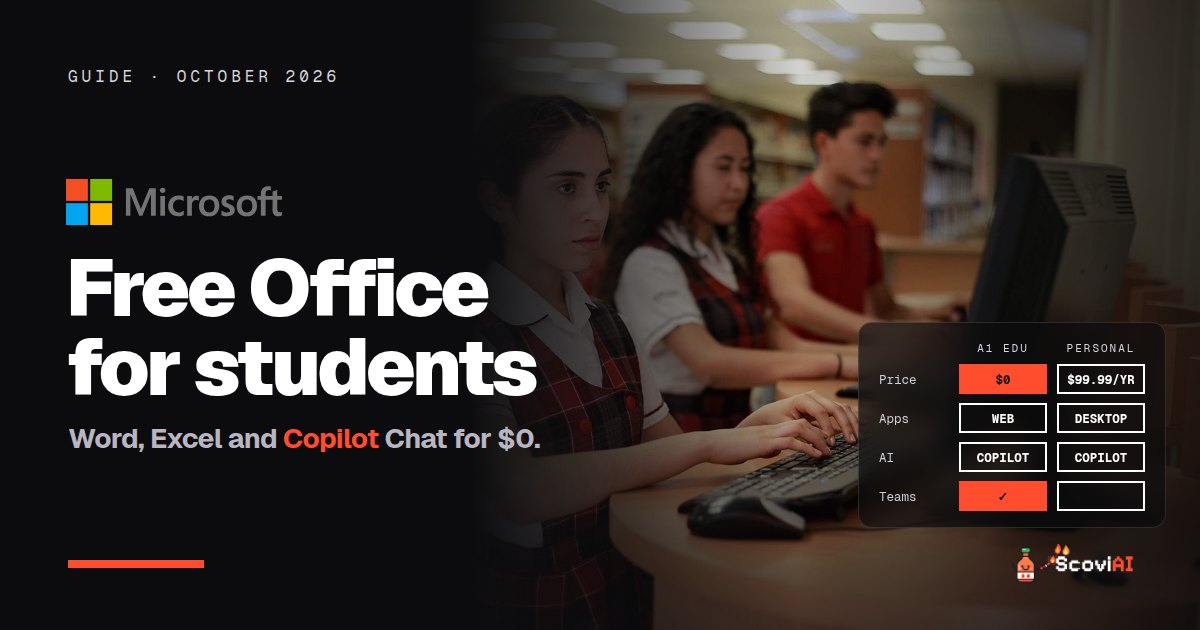
Students and teachers at eligible schools get Office 365 Education free: Word, Excel, PowerPoint, OneNote and Outlook on the web, Teams and Microsoft 365 Copilot Chat. Desktop apps need a school-paid plan; otherwise Microsoft 365 Personal is $99.99 a year.Yes, you can get free Microsoft Office for students: Microsoft gives students and teachers at eligible schools Office 365 Education (the A1 plan) at no cost. It includes the web versions of Word, Excel, PowerPoint, OneNote and Outlook, plus Microsoft Teams and Microsoft 365 Copilot Chat, Microsoft's AI assistant with data protection for school accounts. You sign up with your school email, and you can keep using it while you're enrolled. The free plan is web-based; desktop apps come only if your school pays for a higher plan.
Quick answer: go to Microsoft's Office for education page, enter your school email and follow the steps. If your school is eligible, you get Office on the web, Teams and Copilot Chat free. To check whether you can install the desktop apps, ask your school's IT department: many schools already provide them.
Free Microsoft Office for students at a glance (October 2026)
| Office 365 Education A1 | Microsoft 365 Personal | |
|---|---|---|
| Price | Free for eligible students and teachers | $9.99 a month or $99.99 a year |
| Word, Excel, PowerPoint, OneNote, Outlook | Web versions | Desktop, web and mobile apps |
| Teams | Yes | — |
| AI | Microsoft 365 Copilot Chat | Copilot features in the apps |
| How long | While you're enrolled at an eligible school | While you pay |
As of October 2026, from Microsoft Office for education, Microsoft 365 education plans and Microsoft 365 Personal.
What do students get with free Office 365 Education?
The free A1 plan includes:
- Word, Excel, PowerPoint, OneNote and Outlook on the web, in your browser on any computer.
- Microsoft Teams for classes, group work and video calls.
- Microsoft 365 Copilot Chat, an AI assistant that can help you summarize, draft and brainstorm, with data protection for school accounts.
- PC-only versions of Publisher and Access, according to Microsoft's plan details.
For essays, spreadsheets, presentations and group projects, the web apps cover almost everything a student needs.
ADVERTISEMENT
Who is eligible for free Microsoft Office?
Microsoft says students and educators with an eligible school email address can get Office 365 A1 for free. The email has to be provided by your school (for example, yourname@school.edu) and able to receive external email. Your school also needs to be eligible for Microsoft's education program. You can use the plan for as long as you're enrolled at, or working for, a qualified school.
How to get Microsoft Office free as a student, step by step
- Go to microsoft.com/education/products/office.
- Enter your school email address and choose whether you're a student or a teacher.
- Open the verification email Microsoft sends to your school inbox and follow the link.
- Sign in at office.com with your school account and start using Word, Excel and PowerPoint in your browser.
- Open Copilot Chat while signed in to your school account to use the AI assistant with your school's data protection.
The same offer is on our Office 365 Education deal, where members vote on it.
Can students get the desktop Office apps for free?
Not through the free A1 plan, which is web-only. Desktop apps come with Microsoft 365 Education A3 and higher, plans that schools pay for. With A3, Microsoft lets each user install the Office desktop apps on up to five PCs or Macs, five tablets and five phones. Many universities already have A3 or a similar license, so ask your IT department before paying for Office yourself.
Office on the web vs desktop apps: do you really need the desktop version?
For most students, the free web apps are enough. Word on the web handles essays, comments and track changes; PowerPoint on the web builds and presents slides; Excel on the web covers formulas, charts and shared spreadsheets for group work. Everything saves automatically to OneDrive, so there's no risk of losing a file when your laptop crashes.
The desktop apps matter in a few cases:
- Heavy Excel work, such as large data sets, advanced add-ins or macros for finance, engineering or statistics courses.
- Working offline, for example on long trips without reliable internet.
- Complex documents, like a thesis with many cross-references, where some advanced layout features are easier in desktop Word.
If you're in one of those situations, first check whether your school provides desktop Office. If it doesn't, Microsoft 365 Personal at $99.99 a year is the cheapest official way to get the desktop apps.
What if your school isn't eligible?
If your school email doesn't work, these are the cheapest ways to get Office:
- Microsoft 365 Personal costs $9.99 a month or $99.99 a year, with desktop apps, cloud storage and Copilot features for one person.
- Microsoft 365 Family is $129.99 a year for up to six people, a good deal if you share it with family.
- Microsoft 365 Premium at $199.99 a year adds the highest Copilot usage limits, if you use Copilot heavily.
Our Microsoft 365 Copilot tool page lists every current deal.
Free Office alternatives for students
You may not need Microsoft at all:
- Google Docs, Sheets and Slides are free with a Google account, and schools on Google Workspace for Education also get Gemini and Gemini Notebook free.
- Notion is great for notes and projects.
- Canva and Gamma make presentations faster than PowerPoint for some projects.
That said, many professors and employers still expect Word, Excel and PowerPoint files, so free Office 365 Education is worth claiming even if you mainly use Google's apps.
Tips for students using Office 365 Education
- Save everything to OneDrive in your school account, so your files sync across devices.
- Use Copilot Chat to summarize readings and draft outlines, but write the final work yourself and follow your school's AI policy.
- Download copies of important files before you graduate. When you leave your school, you lose access to the school account.
- Use Teams for group projects. Shared files and chat in one place make group work much easier.
Common problems and fixes
- "My email isn't recognized." Your school may not be enrolled. Ask IT; they can sign the school up.
- "I don't get the verification email." Check the spam folder of your school inbox; the address must be able to receive external email.
- "I need Excel on my laptop." Ask whether your school licenses desktop apps (A3). If not, Microsoft 365 Personal at $99.99 a year is the cheapest official option.
Is free Microsoft Office for students worth it?
Yes. It costs nothing, takes a few minutes and gives you Word, Excel, PowerPoint, Teams and an AI assistant for as long as you study. Claim it, then check our AI student discounts guide for more free tools.
Sources: Free Office 365 for students and educators; Compare Microsoft 365 Education plans; Microsoft 365 Personal; Microsoft 365 for individuals pricing; checked in October 2026.
ADVERTISEMENT
Frequently asked questions
›Can students get Microsoft Office for free?
Yes. Students and teachers with an eligible school email get Office 365 Education (A1) free, with Word, Excel, PowerPoint, OneNote and Outlook on the web, Teams and Copilot Chat.
›Does free Office 365 Education include the desktop apps?
No. The free A1 plan is web-only. Desktop apps come with Microsoft 365 Education A3 and higher, which schools pay for, so ask your school's IT team.
›How long can I use free Office as a student?
As long as you're enrolled at a qualified school. Download important files before you graduate.
›What if my school email isn't eligible?
Microsoft 365 Personal costs $9.99 a month or $99.99 a year and includes desktop apps and Copilot features.
›Does Office 365 Education include AI?
Yes. It includes Microsoft 365 Copilot Chat, with data protection for school accounts.
Written by the ScoviAI team. We check prices on each seller's own pricing page and update our guides when plans change. Some links may be affiliate links; they never change our verdicts. How we work
Live deals for the tools in this guide
Office 365 Education is free for students (with Copilot Chat)
Microsoft 365 Copilot · Productivity ·
Microsoft 365 Premium: $199.99/year instead of $19.99 a month
Microsoft 365 Copilot · Productivity ·
Microsoft 365 Personal with Copilot: $99.99/year vs $9.99 monthly
Microsoft 365 Copilot · Productivity ·